Missing purchase order? Unblock an unpaid invoice
Diagnose an invoice blocked by a missing purchase order, approval or reference, then coordinate a specific correction and confirm the next payment step.
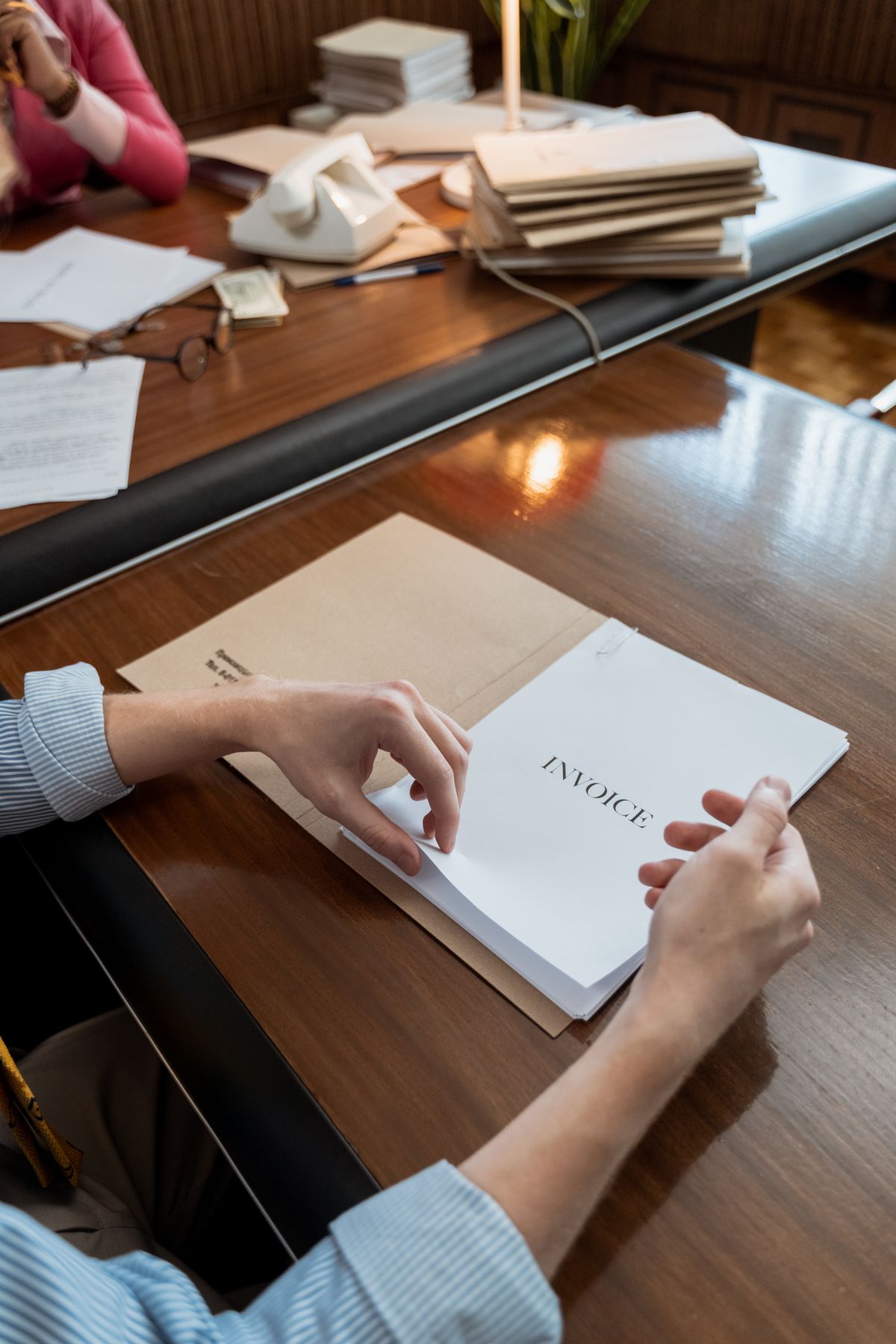
An overdue invoice may be stuck because the buyer’s payment process needs a purchase order, vendor record, delivery confirmation or internal approval. A stronger reminder does not supply the missing requirement. Find the exact blocker, identify who can resolve it and confirm what happens after the correction is made.
Ask for the precise processing issue
Contact the appropriate buyer or accounts-payable contact and ask what prevents the invoice from being processed. Request the specific missing field, document or approval. “There is a problem with the invoice” is not enough information to act on.
Check the original purchasing instructions and agreement. Was a purchase order required, was an invoice portal specified, and did the client provide the necessary information? Keep the conversation focused on the current requirement and the person who can resolve it. Do not assume that one organization’s process applies to another.
A useful opening is: “Could you confirm the exact requirement blocking invoice [reference], and who can provide or approve it? We would like to correct the record and confirm the next processing step.” The first-follow-up guide explains the basic facts to verify before contacting the client.
Separate the roles that can fix different blockers
A project contact may know the work was delivered but be unable to create a purchase order. Accounts payable may process an approved invoice but be unable to authorize the purchase. A procurement or budget owner may need to complete that step. Identify the relevant role instead of forwarding the same reminder repeatedly.
If the issue is a missing purchase order, ask the buyer what their authorized process requires. Do not invent a reference or alter a document to imply that approval existed when it did not. If the invoice needs correction, follow your normal accounting process and preserve a clear audit trail.
Keep the owner of your own follow-up visible too. Someone should coordinate the correction, verify that it reached the right place and update the expected action. An email copied to many people can otherwise leave the task apparently visible but effectively unowned.
Scroll sideways to see all columns.
| Blocker | Question to ask | Likely coordination role |
|---|---|---|
| Purchase order missing | Who can provide the authorized reference? | Buyer or procurement owner |
| Invoice not received | Which submission route is required? | Accounts payable |
| Delivery approval pending | Who confirms the agreed milestone? | Project or business owner |
| Vendor record incomplete | Which specific field or document is needed? | Vendor onboarding contact |
| Invoice detail mismatch | What exact detail needs correction? | Accounts payable and your accounting owner |
Send a correction with a clear reference trail
Once the requirement is confirmed, provide the corrected information through the approved channel. Reference the original invoice and explain what changed. If a replacement invoice is required, use the organization’s accounting procedure so duplicate documents do not create duplicate payment requests or conflicting balances.
Ask the recipient to confirm that the correction was received and accepted for processing. A successful email delivery is not the same as a successful portal submission or an approved vendor record. Keep the evidence of acceptance where the follow-up owner can find it.
Do not send unnecessary sensitive documents because a vague request mentions “onboarding.” Confirm the exact requirement and use the client’s approved submission method. If a request for payment or bank details appears unusual, verify it through an established contact route before responding.
Confirm the payment step after the blocker is removed
Resolving the administrative issue does not establish the date funds will arrive. Ask what happens next: is the invoice awaiting an approval, scheduled for a payment run or still under review? Record the answer as an expectation, not as a receipt.
A practical follow-up might read: “Thanks for confirming the purchase-order reference has been accepted for invoice [reference]. Could you confirm whether the invoice is now approved for payment and the expected payment date? Our current records show [verified amount and currency] outstanding.” This keeps the request specific to the new state.
Use the payment-promise checklist if a date is provided. Record who gave the date, the amount it covers and when you will review it. If the date passes, check source records before asking for another update.
- Correction accepted by the right recipient or system.
- Current approval state understood.
- Expected payment date recorded if provided.
- Next review assigned to a named owner.
Prevent the same blocker on the next invoice
At project setup, ask the client for invoicing requirements, the responsible contact and any purchase-order or portal process. Reconfirm the requirements when a new milestone, legal entity or purchasing arrangement changes the process. A reusable checklist can make this a routine part of delivery rather than a late collection problem.
Review recurring blockers in your weekly receivables review. If several invoices wait for the same approval, discuss the handoff with the business owner. The improvement may belong in project administration, not in more frequent payment reminders.
DueSparrow can hold the entered invoice facts, contact history and next action. Use the free follow-up writer to prepare a precise message after the blocker is understood. The product does not access the client’s procurement system or submit corrections for you; the responsible people complete those steps.